

The IDE (Editor view)
Open a chat's workspace as a full editor with a live Explorer, tabs, search, Source Control, Git history, terminals, a web preview, and the chat beside it that knows which file you are looking at.
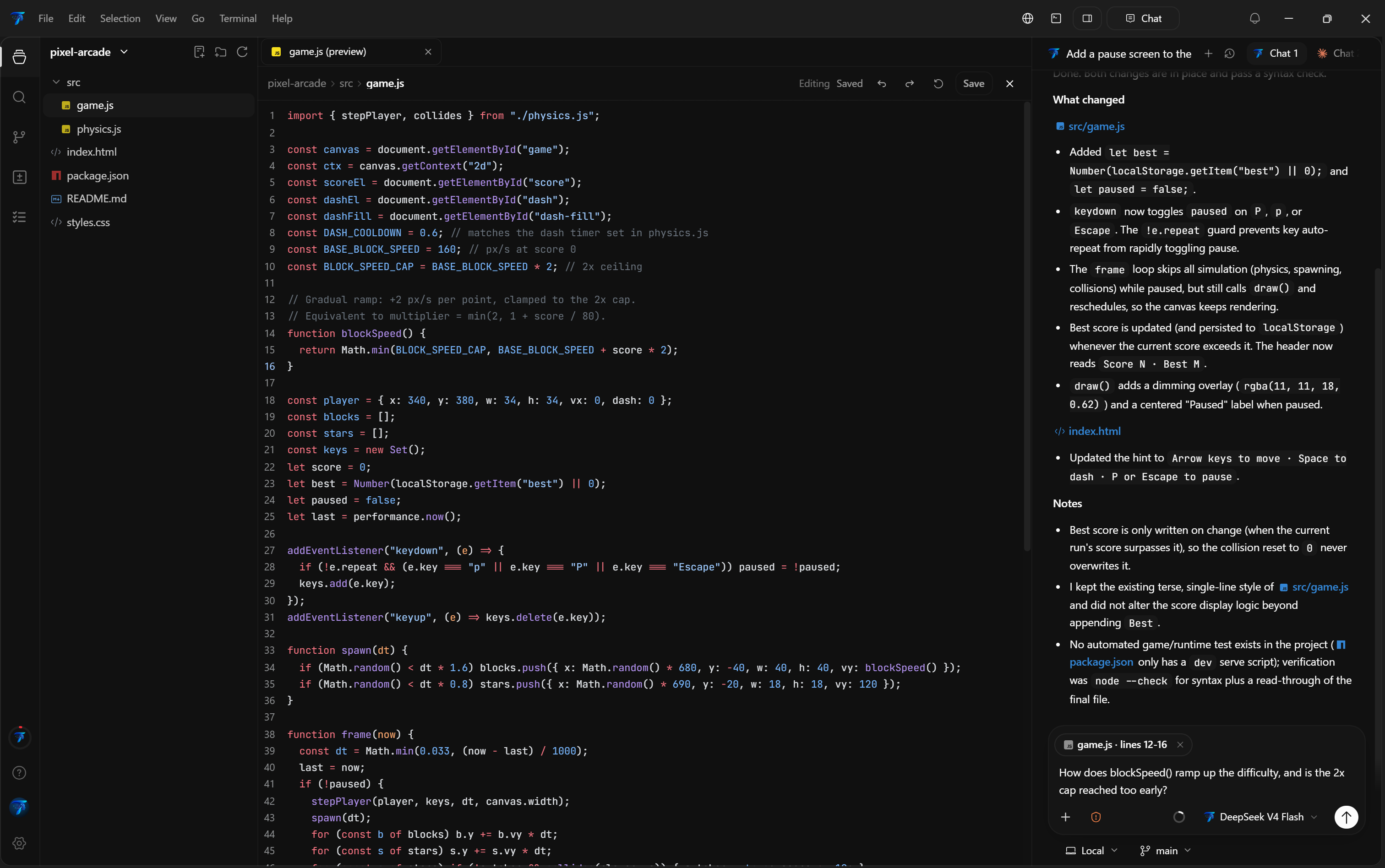
The IDE is the Editor view of a chat. It shows the chat's workspace as an editor: an activity bar and sidebar on the left, editor tabs in the middle, terminals at the bottom, and the same chat on the right. Everything runs against the chat's own checkout, so the files you edit are the files the agent works on.
Open the IDE
- Click IDE in the window bar, next to the notification bell and the window controls ("Open this project in the IDE"). It appears when the chat on screen has a workspace folder.
- Or open the chat's Environment panel and choose Editor view in the Editor section.
There is no default shortcut to open it. To go back, click Chat at the top right of the IDE or choose File → Back to Chat.
The IDE opens the chat's workspace: its worktree when the chat runs in a worktree, otherwise the project folder. The project name heads the Explorer; use the arrow next to it to switch to another project. File → Open Folder... picks a folder on your computer: a folder that is already a project reopens that project, and a new folder is added as a project. Either way it opens in the IDE.
The activity bar
The narrow bar on the left switches the sidebar. Clicking the active item again hides the sidebar so the editor gets the full width (Ctrl+B does the same).
| Item | What it shows |
|---|---|
| Explorer | The workspace file tree |
| Search | File-name search and search in files |
| Source control | Commit, push and pull actions, staged and unstaged files (Git repositories only) |
| Changes | The changed files of the current diff, opened in the diff view |
| Background tasks | What the chat's agent is running, plus local servers (a badge counts running tasks) |
The sidebar, terminal panel, and chat can be resized by dragging their edges. Double-click an edge to restore the default size. Sizes and visibility are remembered.
Explorer
The Explorer shows the workspace tree and updates live. Tejus watches the whole workspace folder with a recursive file-system watcher, so files that the agent, a terminal, or another program creates, renames, or deletes appear within about a second, without a manual refresh. The same watcher keeps Source Control current after commits, checkouts, and staging. Generated folders such as node_modules, dist, build, out, target, coverage, .next, and .turbo are hidden.
Right-click a file or folder for:
- New file… and New folder… (type the name inline; Enter creates it, Esc cancels)
- Rename…, Duplicate, and Delete (Delete asks first and moves the item to the Recycle Bin)
- Reference in chat, which adds the file to the chat composer
- Copy relative path and Open in Explorer
Drag a file or folder onto another folder to move it. Open tabs follow renamed and moved files. You can also drag a file into the chat composer to reference it.
Tabs, editing, and saving
Click a file to open it in a preview tab, marked (preview); the next file you click replaces it. Double-click the tab title, or start editing, to keep it open. A dot (•) in the title marks unsaved changes. Drag tabs to reorder them. Open tabs are remembered per workspace.
Text files open straight into the editor. Markdown files open rendered first, with a Source / Preview switch and an Edit file button. Images and PDFs open in a viewer.
Edits save automatically 400 ms after your last keystroke; the editor shows Saving..., Unsaved changes, or Saved. File → Save or Ctrl+S saves immediately, and File → Save All saves every open editor. Closing a tab, switching projects, or leaving the IDE saves pending edits first; if a save fails, the tab stays open and you stay where you are.
If the file changed on disk while you had unsaved edits, autosave stops and the editor offers Reload from disk (load the disk version, discarding your edits) or Overwrite (write your version over it). Check which agent or program changed the file before choosing.
Settings → Chat behavior → Editor (IDE) has Word wrap (also View → Word Wrap), Tab size, and Autosave delay.
Search
The Search sidebar has two modes:
- Files (
Ctrl+P, or File → Open File... / Go → Go to File...) finds files by name. - In files (
Ctrl+Shift+F, or Edit → Find in Files) searches file contents across the workspace. Type at least two characters. Results are grouped by file with the matching line and line number (up to 100 matches). Click a line to open the file at that line.
Source Control and Git history
Source control brings the chat's Git tools into the sidebar: commit, push, pull, and pull-request actions at the top, and the Staged and Changes lists below, where you can stage, unstage, and open each file's diff. It follows the chat's checkout, including its worktree.
Click History in the Source control header, or choose View → Git History, to open the Git history tab: a commit graph with branches and tags, author, and age. Select a commit to see its message and changed files, and click a file to see its diff. Use Load more for older commits.
Changes in the activity bar lists the files of the current diff with added and removed line counts. Choosing a file shows its diff in the center, and Diff options switches between Split diff and Stacked diff. See Workspace editor & diffs for diff sources, comparisons, and change navigation.
Terminals
Ctrl+J, the terminal button in the header, or Terminal → New Terminal opens the terminal panel below the editor. Terminals are real shells in the workspace folder. Use + for another terminal and switch between them with the tabs; closing a terminal that is still running something asks first while the Terminal close confirmation setting is on. Terminals do not survive an app restart; file tabs do.
Web preview
The globe button in the header (or View → Web Preview) opens the Web preview tab, the app's built-in browser inside the editor area. Links the chat opens in the browser, and local servers you open from Background tasks, land in this tab.
Background tasks
Background tasks lists what the chat's agent is running, such as shell commands, subagents, and workflows, with live durations. Finished tasks collapse under Finished, and you can clear them. For Claude Code chats each running task has a Stop task button.
The Local servers section lists the dev servers running in this project. Open in browser loads one in the Web preview tab, and Stop server stops it.
Outside the IDE, the same list is available as the Background tasks panel in the chat's right dock.
The menu bar
The IDE has its own menu bar next to the Tejus logo:
- File: New File..., New Folder..., Open File..., Open Folder..., Save, Save All, Close Editor, Close All Editors, Settings, Back to Chat, Close Window
- Edit: Undo, Redo, Cut, Copy, Paste, Find in Files
- Selection: Select All, Copy Path, Copy Relative Path
- View: Command Palette..., Explorer, Search, Source Control, Changes, Background Tasks, Sidebar, Terminal, Chat, Web Preview, Git History, Word Wrap, Full Screen
- Go: Back, Forward, Go to File..., Next Editor, Previous Editor
- Terminal: New Terminal, Toggle Terminal Panel, Close Terminal
- Help: Keyboard Shortcuts, What's New, Documentation, Send Feedback, Check for Updates..., About Tejus
Help → Check for Updates... checks the Tejus update feed and tells you whether an update was found, is downloading, or is ready after a restart.
The chat beside the editor
The chat on the right is the same chat you came from, with the same history and composer. Hide or show it with Ctrl+Alt+I or the panel button in the header. Its header has New (a new chat or a new terminal), Chat history for the project's other chats, and tabs for the chats you have open. A new chat started here uses the same workspace (the same folder, or the same worktree and branch), so every agent works on the files the editor shows.
What the chat knows about the open file
When you send a message from the IDE's chat, Tejus tells the agent which file is open in the active editor tab, and which lines you have selected. It adds a block like this to the end of your message:
<editor_context>
Open in the editor: @src/app.ts (lines 10-24)
The user has these lines selected (from the editor, may include unsaved edits):
```
...the selected text...
```
</editor_context>- With no selection, only the file's workspace-relative path is sent, with a note that the agent can read the file from disk if it needs it. The file's contents are not attached.
- With a selection, the selected text is included, taken from the editor buffer, so it can include unsaved edits. The selection is capped at 4,000 characters; beyond that, the agent is told only the first 4,000 characters are shown and to read the file for the rest.
- The context is read at the moment you send. Unsaved editor changes are saved first; if saving fails, the message is not sent and your prompt and edits are kept.
- Nothing is added when the active tab is not a file (for example Web preview or Git history), or when you send from a chat outside the IDE.
- In the transcript, a sent message shows a small chip with the file name and line range instead of the raw block.
Leave the file out
The composer shows the current file as a chip, for example app.ts · lines 10-24. Hover over it to see what will be shared. Click the × on the chip ("Don't share this file") to send your next messages without the editor context. The chip stays dimmed with a + while the file is excluded; click it to share the file again. Opening a different file resets the choice, so the new file is shared until you exclude it too.
IDE shortcuts
| Shortcut | Action |
|---|---|
Ctrl+P | Search files by name |
Ctrl+Shift+F | Search in files |
Ctrl+B | Show or hide the sidebar |
Ctrl+J | Show or hide the terminal panel |
Ctrl+Alt+I | Show or hide the chat |
Ctrl+W | Close the active editor tab |
Ctrl+Tab / Ctrl+Shift+Tab | Next / previous editor tab |
Ctrl+S | Save |
Ctrl+B and Ctrl+W do nothing while a terminal has focus. Change these in Settings → Keybindings (commands editorView.sidebar.toggle, editorView.terminal.toggle, editorView.chat.toggle, editorView.tab.close, editorView.tab.next, editorView.tab.previous). See Keyboard shortcuts for the full keymap.